
Introduction to the Standalone Ecosystem
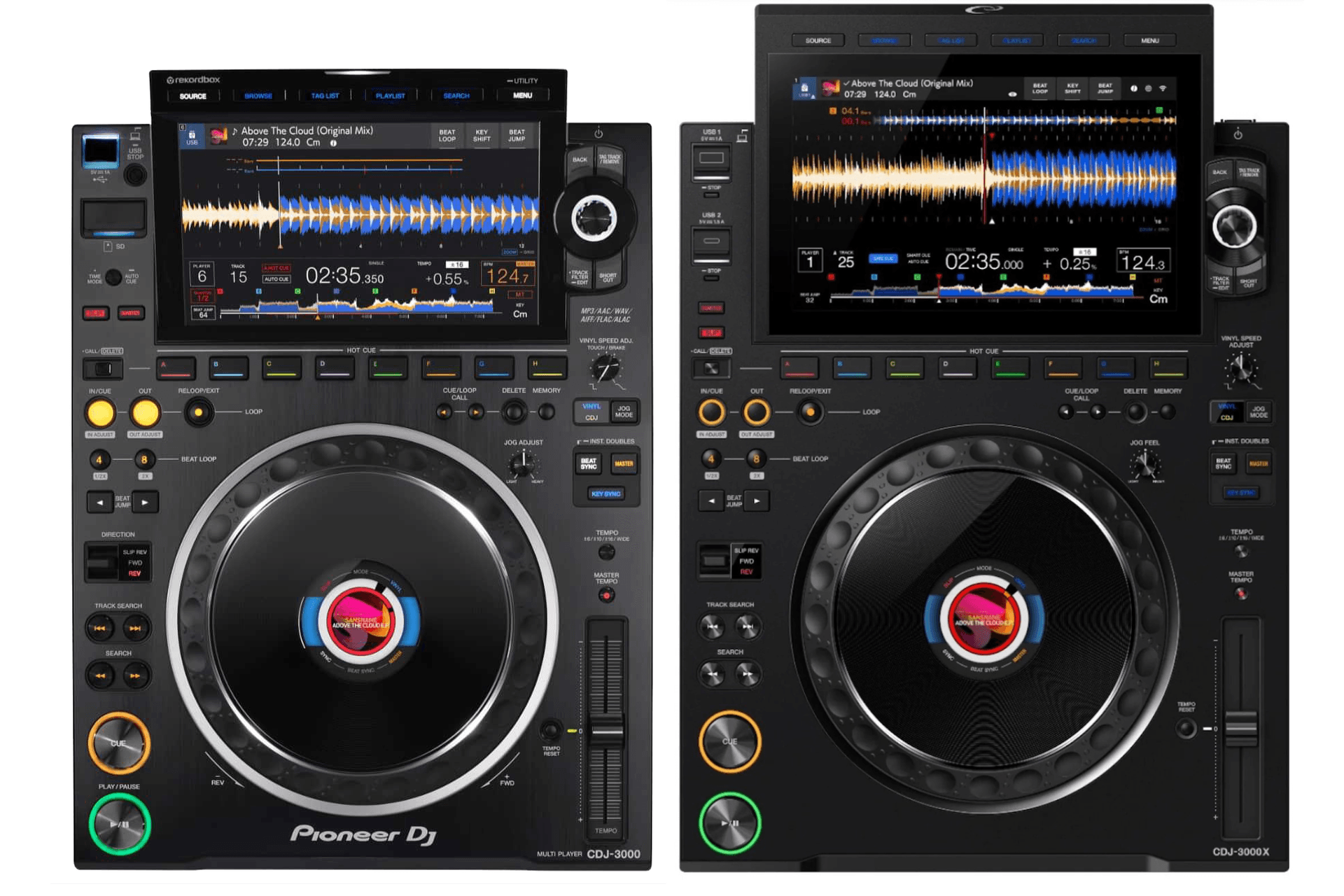
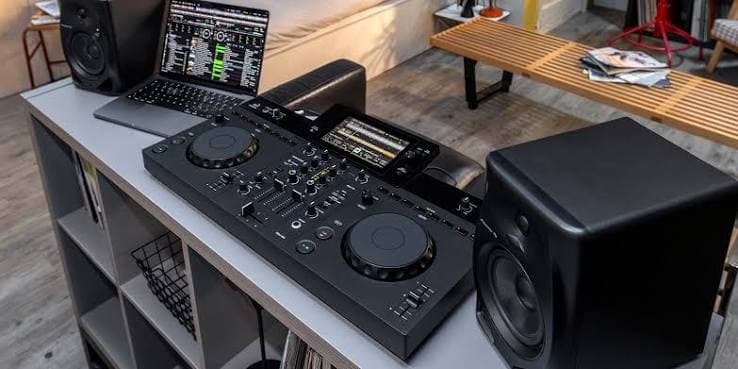
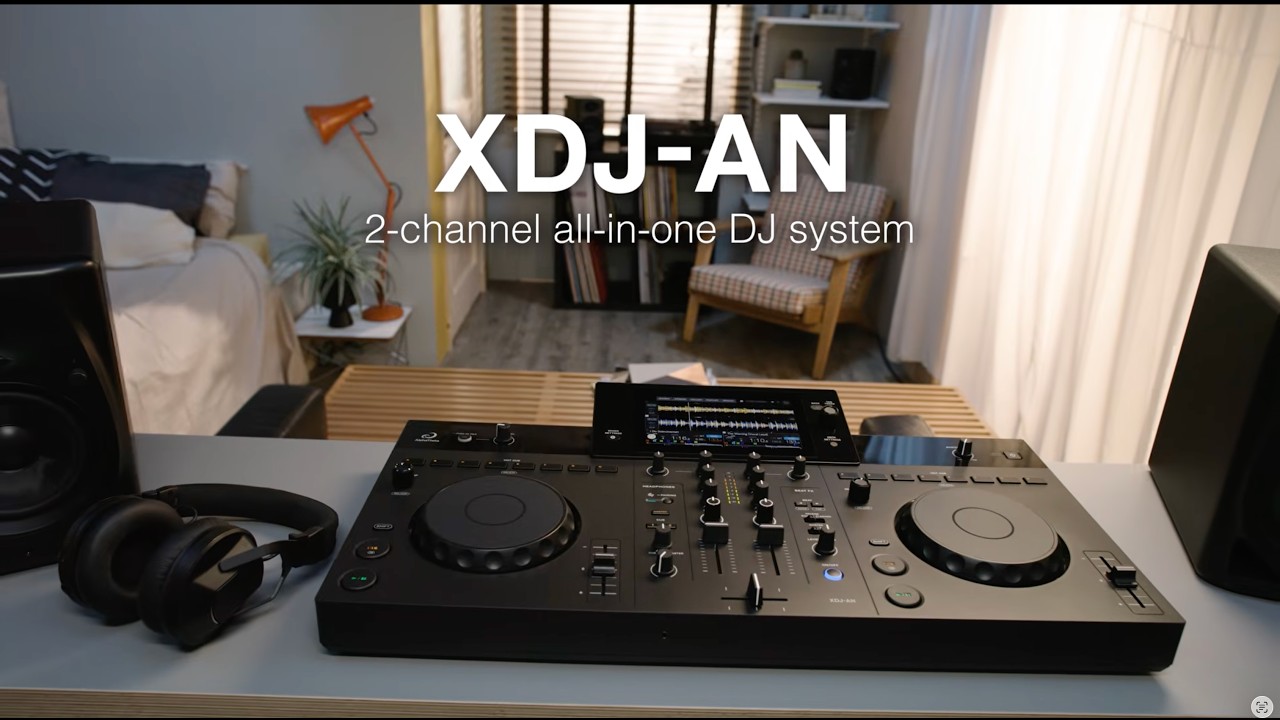
The AlphaTheta XDJ-AN system represents the direct evolution of two-channel controllers, designed to bridge the gap between home equipment and the professional club standard. This hardware inherits the layout of the CDJ-3000X series and DJM mixers. This technical guide details the operating procedures to maximize the equipment's performance in live and studio environments.
Unpacking and Physical Connections
The rear and top panel of the device houses all communication interfaces. Follow this strict order to avoid voltage spikes and ensure clean signal routing:
- Connect the main power cable to the USB-C port designated for power input on the rear panel.
- Connect the PA system or studio monitors to the main outputs. Use the Master 1 (XLR) connections for professional environments or Master 2 (RCA) for home setups.
- If using a microphone, insert the cable into the Mic (TRS 6.35 mm) input. Keep the gain knob at minimum before turning on the equipment.
- Insert your removable storage drives into the USB-C ports on the top panel intended for media reading.
- Turn on the equipment by pressing the Power button.
Start playback
Network Configuration and Cloud Synchronization
The hardware operates independently thanks to its integrated wireless connectivity. Network configuration is the first step to enable advanced functions.
- Tap the gear icon on the 7-inch touchscreen to access the global settings menu.
- Navigate to the connectivity tab and select Wi-Fi. Choose your local network and enter the password using the on-screen alphanumeric keyboard.
- To activate the Cloud Library Sync function, select the corresponding option in the menu and log in to your rekordbox account.
- Link your compatible storage services, such as Google Drive or Dropbox, by following the on-screen authorization instructions.
- Once the connection is established, your playlists, cue points, and metadata will automatically synchronize between the cloud and the hardware.
Loading Tracks via StreamingDirectPlay
The StreamingDirectPlay function eliminates the need to download local files, allowing direct access to online music catalogs with streaming quality.
- Press the Source button to open the media selection menu.
- Select StreamingDirectPlay on the touch interface.
- Log in to your preferred service provider. Native options include Apple Music, Beatport Streaming, and TIDAL.
- Use the Rotary Encoder to browse through the streaming service's playlists, genres, or top charts.
- Press the Load button on channel 1 or 2 to assign the track to the corresponding deck.
- Take advantage of the Info Search function by tapping the artist or album name on the touchscreen; the system will automatically search for related tracks in the catalog.
Mixing Techniques and Performance Control
The control surface is designed to replicate the ergonomics of a professional booth. Execute your mixes using the following physical modules:
- Adjust the input level of the loaded track by turning the Trim knob until the LED meters reach optimal levels without hitting the red.
- Modulate frequencies using the three-band equalizer: Hi, Mid, and Low located on each channel of the central section.
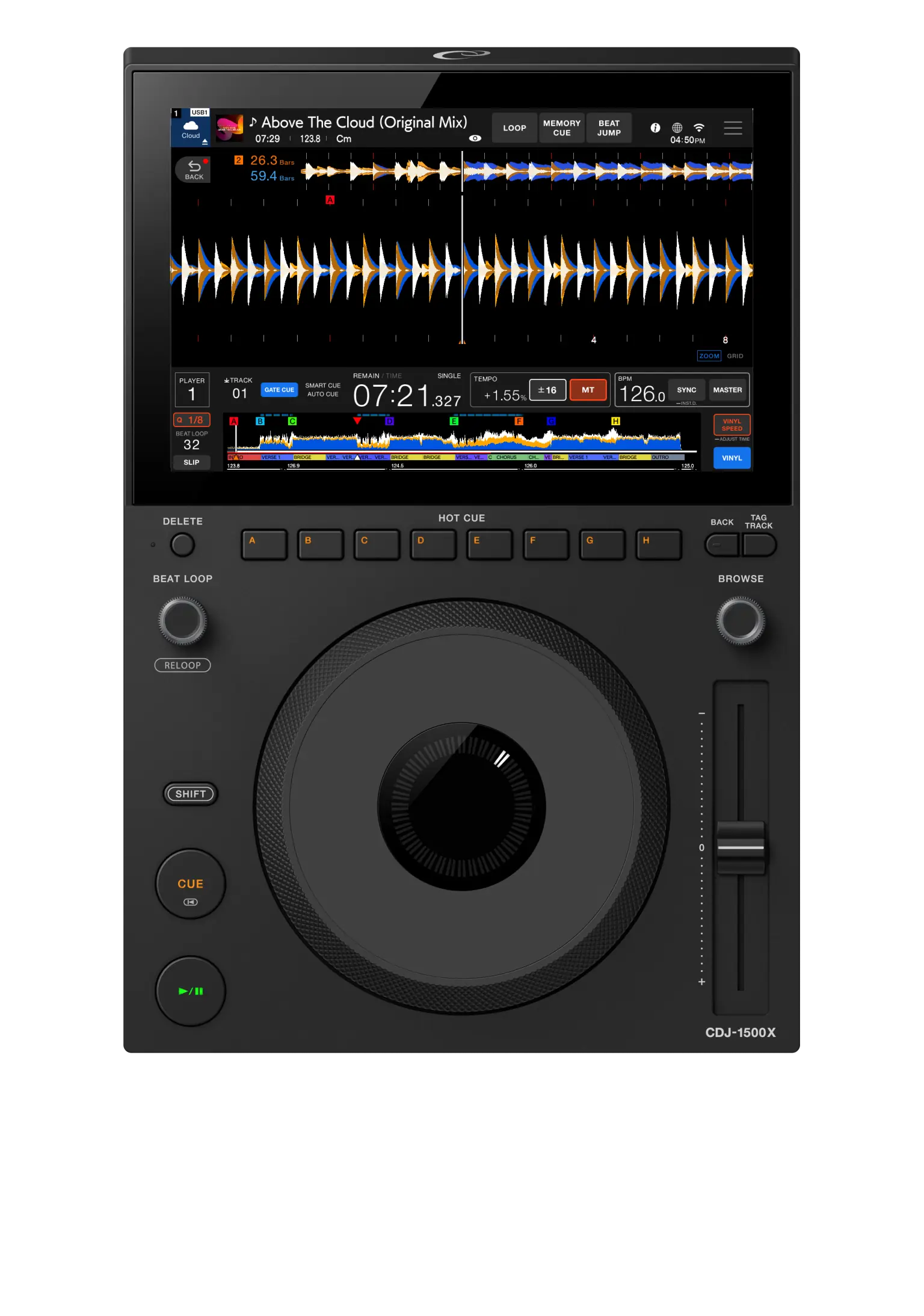
- Control transport and manual synchronization using the 5.2-inch jog wheels. Use the outer edge for pitch bending and the top surface for scratching.
- Assign and trigger cue points using the 8 Hot Cues buttons located at the bottom of each deck.
- Apply color effects by turning the Color FX knobs. Select from the 6 available options inherited from the DJM series using the corresponding buttons.
- To apply tempo-based effects, select the effect in the Beat FX section (3 available), assign the destination channel with the rotary selector, define the time fraction, and press the flashing ON/OFF button to activate it.
Wireless Monitoring via SonicLink
The device integrates a proprietary radio frequency transmitter that allows for wireless cueing, eliminating the need for external transmitters.
- Turn on your headphones compatible with SonicLink technology (such as the HDJ-F10 series).
- Access the audio settings menu on the touchscreen and select the SonicLink tab.
- Activate the integrated transmitter and follow the pairing instructions. The connection offers ultra-low latency of approximately 9 milliseconds and an operating range of up to 5 meters.
- Adjust the cue signal by turning the Headphones Mix knob to balance between the selected channel and the master output.
- Control the final volume in the headphones with the Headphones Level knob.
Recording and Live Streaming with DJM-REC
Native integration with mobile applications allows for recording and broadcasting sets directly from the hardware without relying on external audio interfaces or computers.
- Connect your mobile device (iOS or Android) to one of the free USB-C ports on the connection panel.
- Open the DJM-REC application on your smartphone or tablet.
- On the hardware screen, verify that the recording output is routed correctly to the connected USB port.
- Configure the recording gain parameters within the mobile app to avoid digital clipping.
- Start local recording or configure live streaming parameters from the mobile app interface.
Use as a Controller with Third-Party Software
Although its primary design is standalone, the equipment functions as an advanced MIDI controller for the main software ecosystems on the market.
- Connect a cable from the USB-C PC/Mac connection port to your computer.
- Launch your preferred software. The hardware is natively compatible with rekordbox and djay, in addition to supporting a paid update for Serato DJ Pro.
- Press the Source button and select Control Mode on the touchscreen.
- The hardware will automatically map its physical controls to the software parameters, allowing the use of the 7-inch screen to browse the computer's library.
Perspective: Workflow and Performance Analysis
The design of this two-channel system consolidates a professional-level workflow into a compact 5.2 kg chassis, offering a direct response to the needs of modern DJs.
- Operational advantages: The integration of the SonicLink transmitter and StreamingDirectPlay capabilities eliminates the reliance on cables and physical media, drastically reducing preparation time before a performance.
- Cloud management: Bidirectional synchronization via Cloud Library Sync ensures that any modification to cue points or metadata made during the session is instantly reflected in Dropbox or Google Drive storage.
- Ergonomic considerations: Although the layout replicates the club standard, the size of the jog wheels (5.2 inches) and the touchscreen (7 inches) require a tactile adaptation period for those users accustomed to four-channel formats or full-size players.